
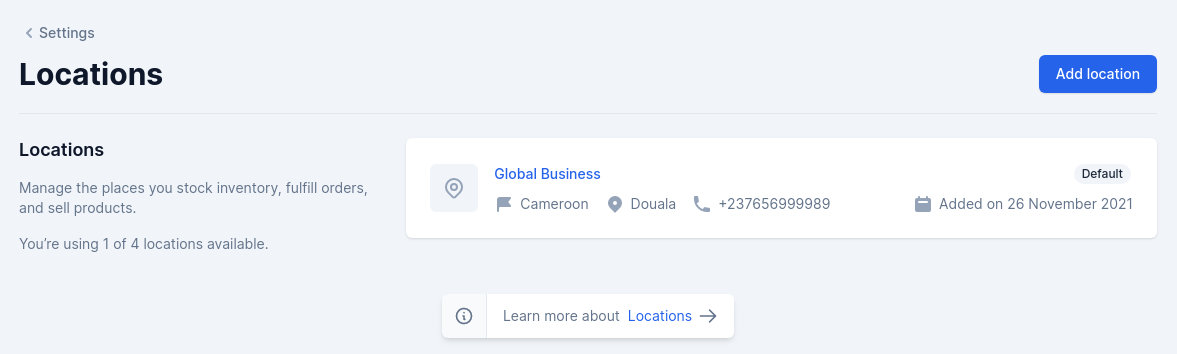
Locations
Setup locations
From the administration area of your store you can’t manage more than 4 inventories. This system being still experimental we are working on it to make it simpler to facilitate the management of your store.Fields
The model used isShopper\Core\Models\Inventory.
| Name | Type | Required | Notes |
|---|---|---|---|
id | autoinc | auto | |
code | string | yes | Unique, the code is a unique element that allows to index an inventory in a unique way, a bit like a slug |
description | text | no | nullable |
email | string | yes | Unique, the location email address |
street_address | string | yes | The address details (street, nr, building, etc) |
street_address_plus | string | no | The second address details (optional) |
zipcode | string | yes | National identification code. (optional) |
city | string | yes | The city/settlement |
phone_number | string | no | Nullable |
priority | integer | default (0) | no |
latitude | decimal | no | Nullable, GPS latitude coordinates |
longitude | decimal | no | Nullable, GPS longitude coordinates |
is_default | boolean | no | Default false, define location as defaut for stock |
country_id | string | yes | foreign key for country, each location must be linked to a country |
Components
The components used to manage locations are found in the component configuration fileconfig/shopper/components.php.
Manage locations
In your administration area you must click on the “cog” icon to display the settings page of your store.- From your admin panel, on the blue sidebar click on the cog icon, go to
Settings > Locations.
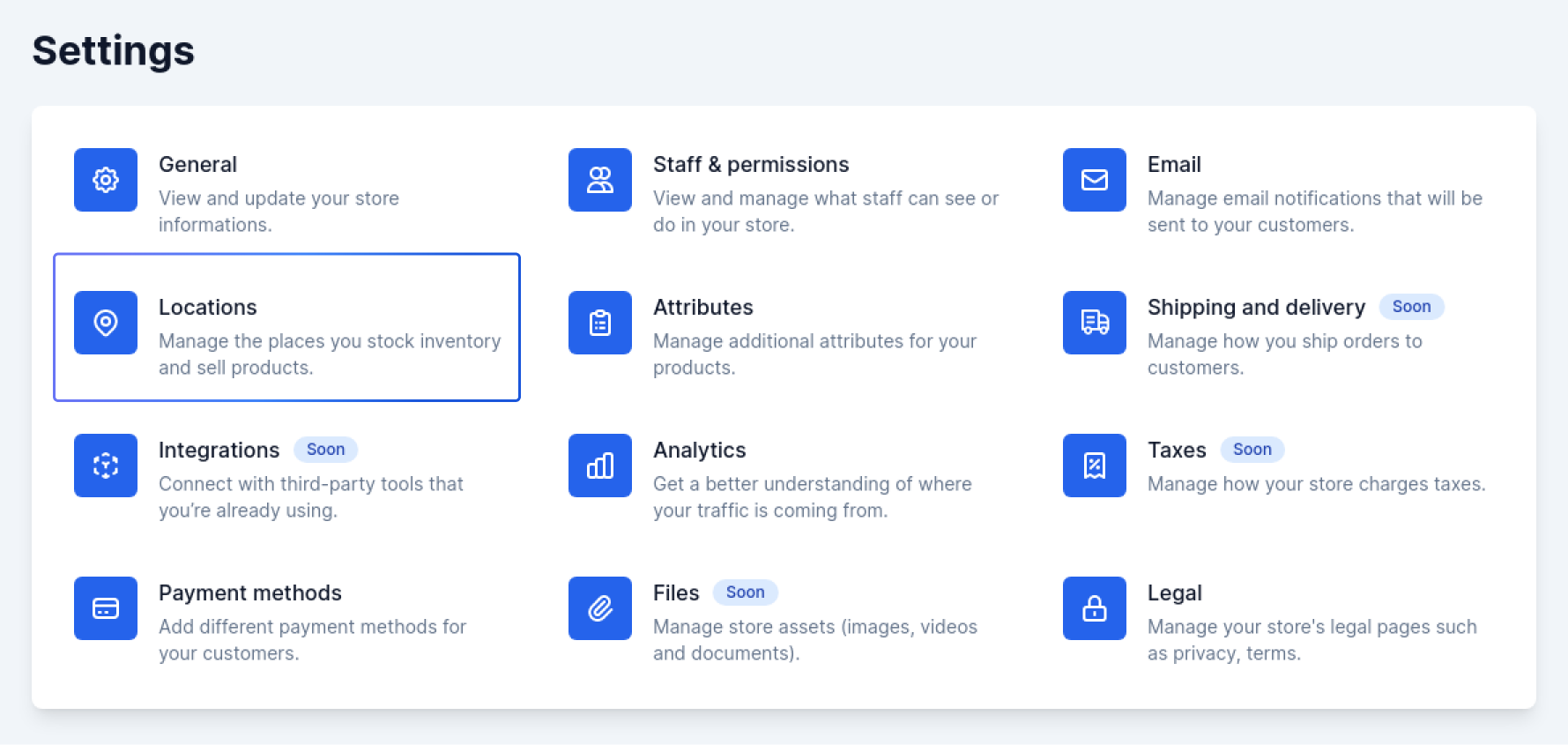
Settings > locations
Add location
In your administration area you must click on the “cog” icon to display the settings page of your store.- Click Add location.
- Enter a unique name and an address for the location.
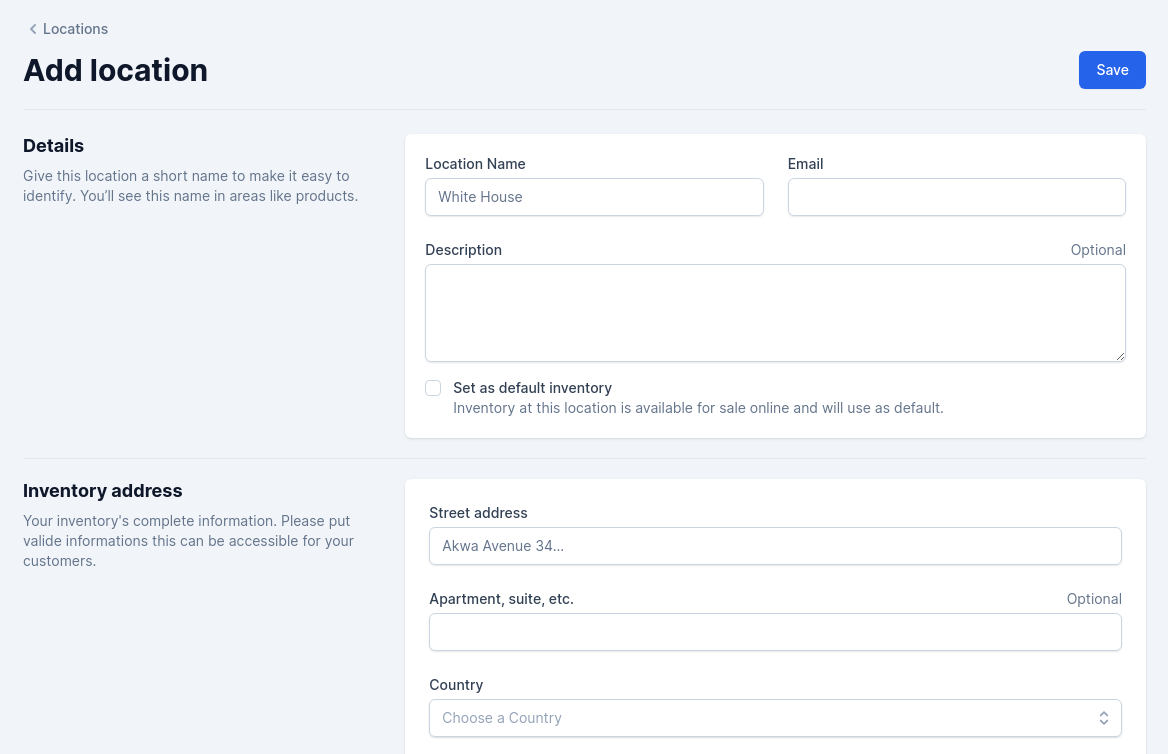
Add location
Edit location
To update a location you click on an available location among those you have saved and you will have the update page.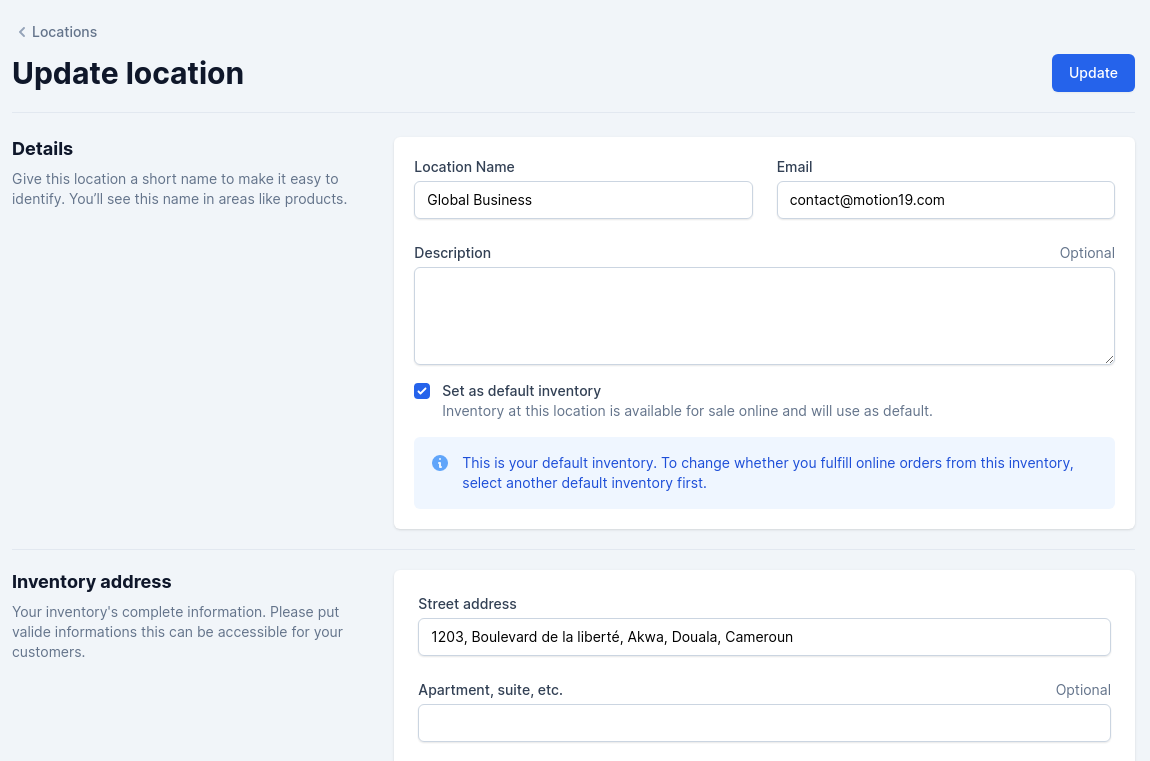
Update location
Define a default location
The default location is the one in which all products will be collected with each order. If this location is empty the products will be searched in another and if it is the only one the product will be out of stock on your store. You select a location and during the modification you click on the checkbox Set as default inventory
Set default location
Delete location
To delete a location you must click on a location to display it and at the bottom of the page you click on the delete button.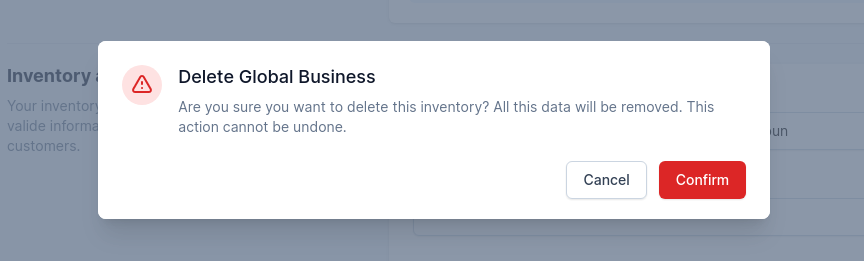
Delete location confirmation