
Supported Versions of Laravel
Laravel 8 and Laravel 9 are supported. It feels like this section needs more than one sentence but it really doesn’t. That first one said all that needs saying.Install Shopper
Shopper is really easy to install. After creating your new app or in an existing Laravel app (8+). There are 2 steps to follow to install Shopper.- Run
php artisan config:clearto make sure your config isn’t cached. - Install
shopper/frameworkwith Composer.
Write Env Variables
Next make sure to create a new database and add your database credentials to your .env file, you will also want to add your application URL in theAPP_URL variable
Automatic Installation
After installing Shopper in your project via compose and configuring the database, now we will automatically install in the project.Update Existing Files
Extend your current User Model (usuallyapp/Models/User.php) using the Shopper\Framework\Models\User\User as Authenticatable alias:
Create an Admin user
Now we can create a new superuser and sign into the Dashboard and start creating some content to display on the frontend. Run the following command to create a user with supreme (at the moment of creation) rights: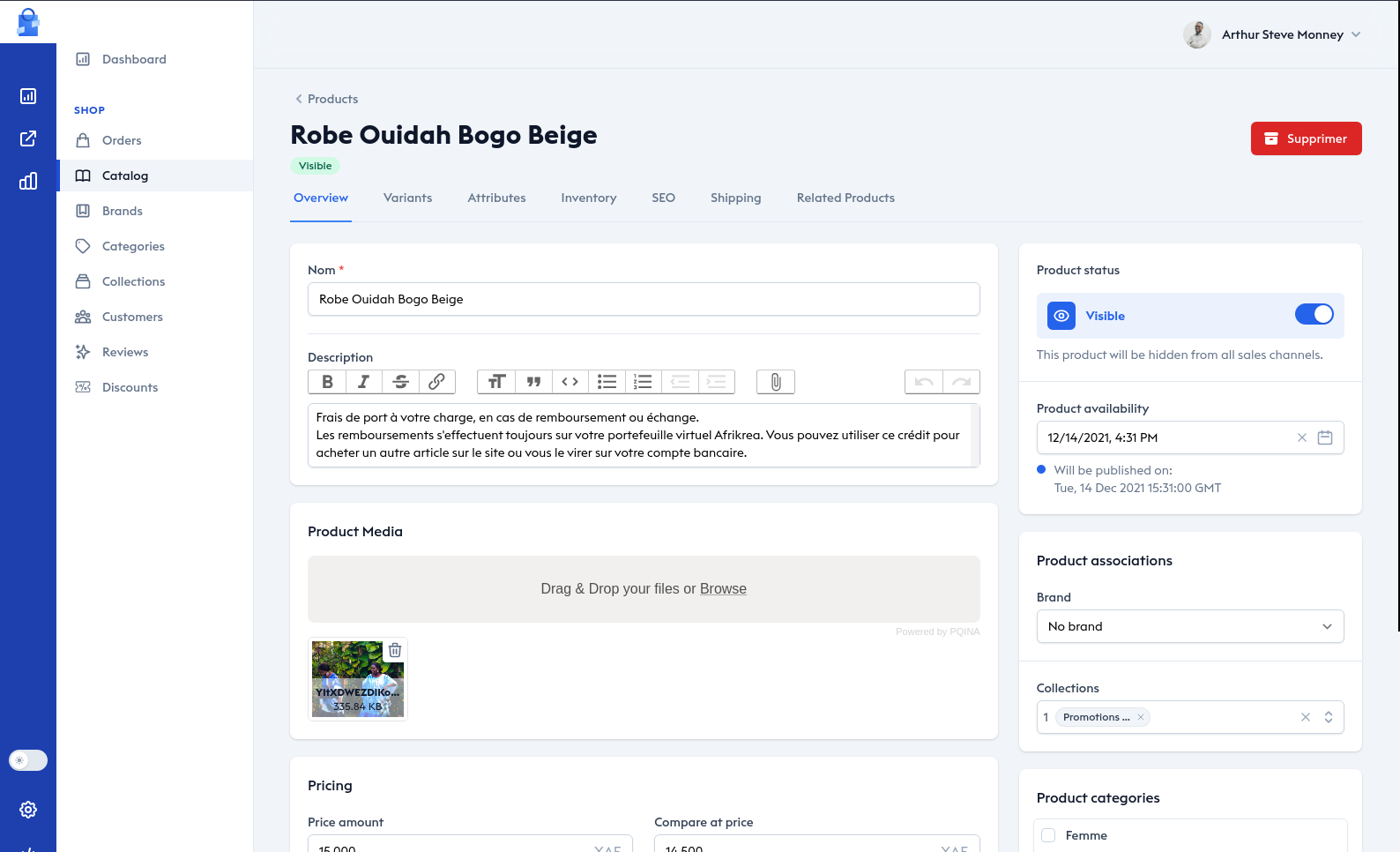
New Shopper Directory
After Shopper is installed, you’ll have 1 new directory in your project:config/shopper/
Publish Vendor Files
If you want to publish again Shopper’s vendor files run these commands:php artisan serve
After that, run composer dump-autoload to finish your installation!
If your are using Laravel Valet you can easily access with your project name with .test at the end when you navigate on you project.